A kitchen dashboard for an iPad stuck on iOS 12
Our old iPad can't be updated past iOS 12, so most apps won't install on it any more. Instead of letting it gather dust, we turned it into a family screen for the kitchen wall, served by the same 2012 Raspberry Pi that runs our Pi-hole.
The idea
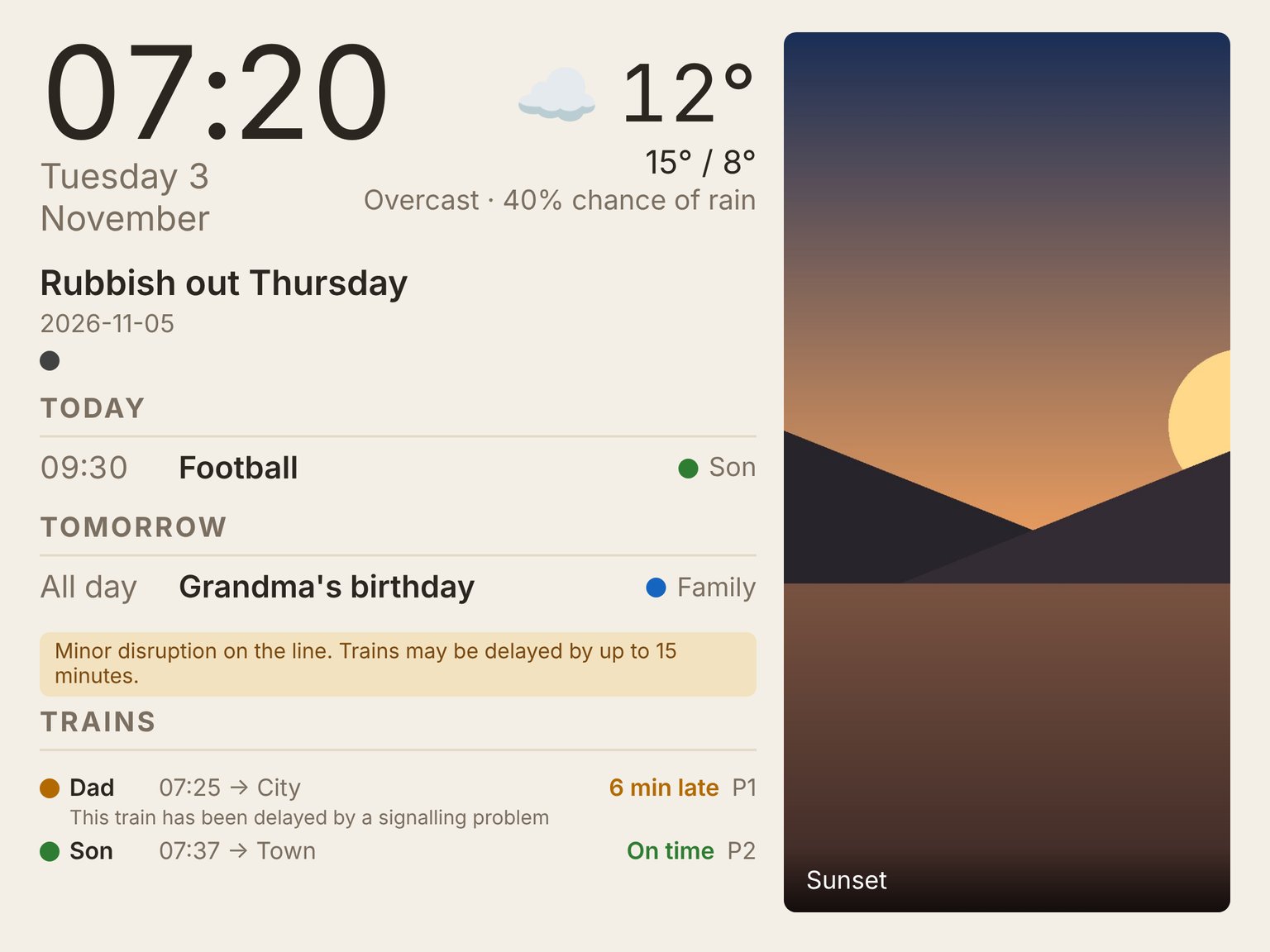
Every morning in our house involves the same questions. What's on today? Is it going to rain? Which bin goes out tonight? Is my train on time? We wanted one screen by the kettle that answers all of them at a glance:
- the time and date, big enough to read across the room;
- today's and tomorrow's plans from the family calendars, with a coloured dot for each person;
- the weather now, plus the day's high, low and chance of rain;
- bin day, with a reminder you can't miss on the evening they go out;
- live train times for our usual trains, including whether they're late;
- a photo of the day from our own pictures.
It also made a great split of work. My son owns the front end: how it looks, the layout, the colours, the night mode and every tile. I own the back end that gathers the data.
Two very old computers
This project is all about constraints.
The screen is a first-generation iPad Air. Its last update is iOS 12, so its browser is Safari 12, from 2018. Plenty of modern web code simply doesn't run on it: no optional chaining (?.), no nullish coalescing (??), no gap on Flexbox layouts, no aspect-ratio. The worst one is regex lookbehind: Safari 12 treats it as a syntax error, and one syntax error stops the whole script from running, so the screen just stays blank. So the project has a linter that refuses the things we know Safari 12 can't handle, so most mistakes are caught on the laptop rather than on the wall. It can't catch everything, which is why every step was also checked on the real iPad.
The server is the original Raspberry Pi: 512MB of RAM and one 700MHz core, already busy with Pi-hole, which owns the usual web ports. So the dashboard runs alongside it on its own port, as a small Python Flask app. It does all the fetching and caching, and the iPad only ever asks the Pi for one small bundle of data.
How we built it
We built it over two weekends and an evening in between, step by step from a written plan, writing the code with Claude Code. After each step we stopped and checked the real thing on the real iPad, because so many problems only show up on Safari 12.
The thing that saved the most time was writing the hard limits down once, in a rules file kept with the code: the JavaScript and CSS that Safari 12 can't handle, a Pi with only 512MB of RAM, and calendar links and API keys that never go in the code. My son drove the look and feel ("move the photo", "make the bin reminder impossible to miss"), I drove the data side, and every command that ran on the Pi was approved by me first.
How it works
The Pi does the slow, fiddly work, and the iPad just displays it:
- Calendars come from the private calendar links that Google Calendar and iCloud both offer.
- Weather comes from Open-Meteo, which is free and needs no account.
- Bins come straight from the council's own collection data, with a backup rota for when their site is down, including the rule that a bank-holiday Monday pushes collections back a day.
- Trains come from National Rail's live departure data, which is free once you register.
- The photo is picked once a day, resized on the Pi, and cached, so the iPad never has to download anything big.
Each source refreshes on its own schedule: the calendar every ten minutes, the weather every half hour, the bins and the photo once a day. The trains refresh every two minutes, but only around the times we actually travel; the rest of the time the Pi doesn't ask at all. If any source fails, the screen keeps showing the last good answer with a small "may be out of date" marker, rather than an error. A broken page on the kitchen wall would be noticed by everyone.
We also gave the dashboard a friendly local name through Pi-hole, so the iPad opens a proper name rather than a string of numbers.
Things that bit us
The calendar took a minute to read. Our shared family calendar goes back years, and on the old Pi, parsing all 844 events took about 59 seconds, every ten minutes. Most of those were one-off events from years ago. The fix was to throw away events that can't possibly fall in the next two days before parsing, while always keeping repeating events, so the slow parser only sees the few that matter. Parsing now takes under a second.
Two requests at once broke the photo. The logs showed two refreshes running at the same moment, both writing the same temporary file, and one of them losing. Each source now takes a lock, checks again whether someone else has just refreshed it, and only then does the work. The photo is saved under a unique name and swapped into place in one step, so a power cut can never leave half a picture.
Portrait photos looked awful in a wide strip. My son asked for the photo to move into a tall panel down the right-hand side, with everything else on the left, and it works far better.
A reload at the wrong moment strands the screen. The page reloads itself every night to pick up his latest changes. But if the Pi happened to be down at that moment, the iPad would get stuck on Safari's "cannot open the page" screen, locked in place on the wall. Now it checks the Pi is healthy before reloading, and tries again later if it isn't.
There's no dark mode on iOS 12 for the page to follow, so night mode is based on the time: after bedtime the page switches to a dark, dimmed theme. A web page can't switch the screen off, so that's the next best thing.
The photo of the day
The first version picked photos from a shared iCloud album. That worked, but it relied on an unofficial Apple interface that could change at any time, and it meant our photos were going via the internet. Once we'd tidied up the NAS (more on that in a later post), we switched to a folder of favourites on the NAS instead, so the photos never leave the house. Naming a file something like 2019-08 Beach.jpg gives it a caption on the screen; a photo without one simply has no caption, because showing who took it read like a photo credit.
The Pi reads that folder read-only, through its own NAS account that can see the favourites and nothing else. Until it was connected, the screen kept showing the last photo it had saved, marked as out of date, which is exactly what it's meant to do when a source is missing.
Where it's up to
It's been running on the Pi since the middle of October. Still to do:
- Power-cut drills: pull the Pi's plug and check the screen recovers on its own.
- The wall: the iPad goes up near the kettle, locked to the dashboard with Guided Access, with auto-lock switched off.
Looking after the battery
An old iPad left charging around the clock can swell, so its charger is now on a smart plug that only charges it twice a day: 1am to 5am, and 1pm to 4pm. The schedule is set on the plug itself, so it carries on whatever else is happening.
The plug works entirely inside the house: password on, no cloud account, Bluetooth off. Next we'll keep an eye on the battery for a week or so and adjust the times if it runs low.
What it cost
Very little. The iPad, the Pi and the charger were all spare. The only purchases are the smart plug for the charger and a wall mount, which is still to buy.
What's next
Tidying up the NAS, which had gone years without anyone really looking after it.